Ask the AI assistant to edit rubrics, scores, and feedback
Describe the change you want in your own words. Ask GradingPal works inside the assignment or assessment you are editing, proposes supported changes, and lets you review them before accepting. Spend less time navigating small edits and more time checking the quality of the assessment.
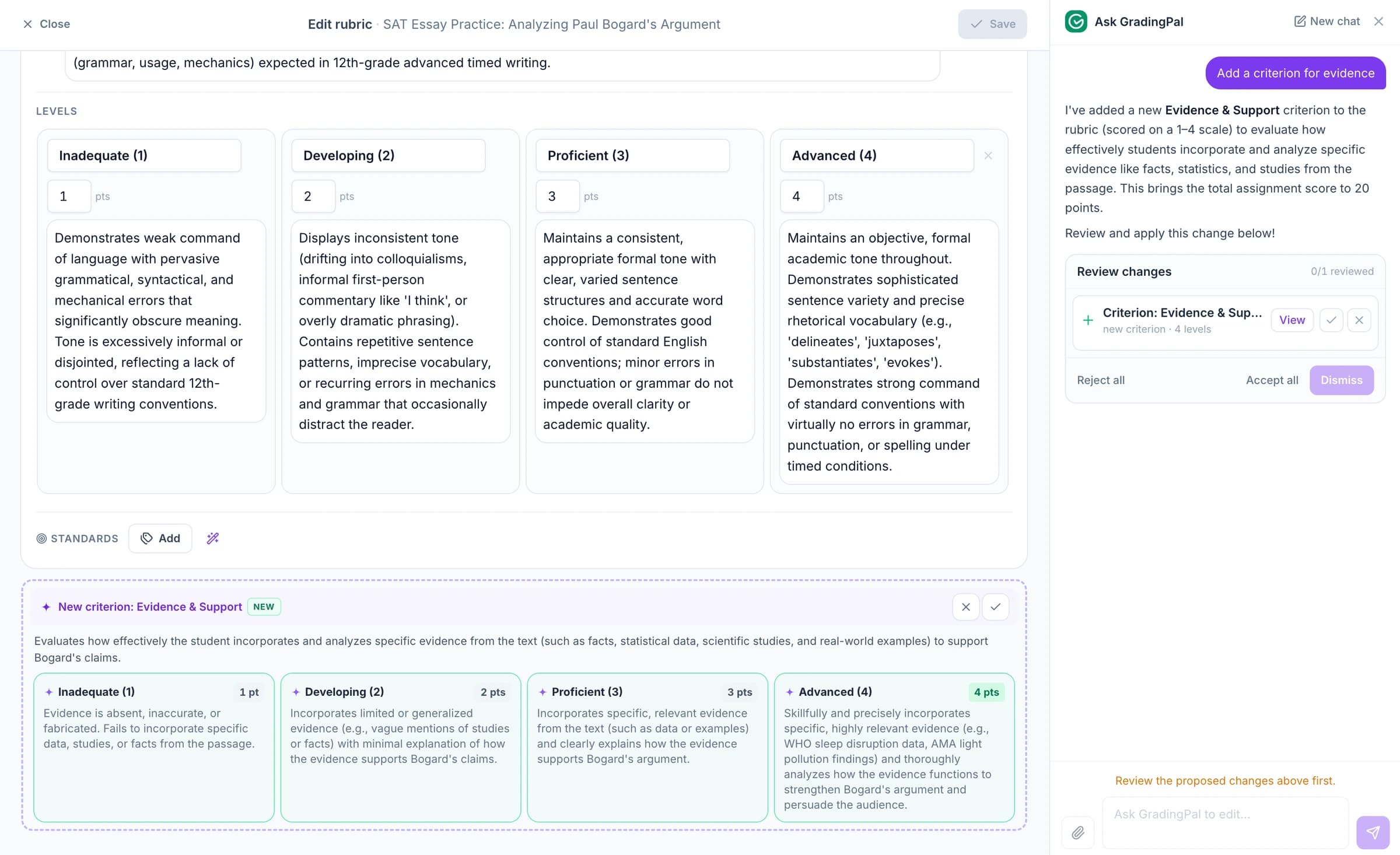
Make the change where you are already working
A grading workflow involves many small decisions: a rubric row needs clearer wording, an answer key needs refinement, or a feedback comment needs a better next step. Ask GradingPal lets you describe the edit alongside the relevant material instead of rewriting every part manually.
The assistant uses its current editing context. You can attach relevant material when explaining a request, inspect the proposed result, and keep the parts that fit the task. Your rubric, student work, and professional judgment remain the basis for the assessment.
Build a clearer rubric with less manual editing
Ask the assistant to propose criteria, performance-level descriptions, or point allocations. Use it to make distinctions easier to assess: separate the quality of evidence from the explanation, clarify what partial credit requires, or make a level description more specific.
Illustrative request: “Separate evidence selection from explanation. Keep the same total points and make the difference between the two criteria clear.”
Review the resulting criteria and totals before grading. For math and science, check that the rubric rewards the knowledge and working you intended. For writing, check that a change in wording has not accidentally changed the task's expectations. Explore rubric options.
Refine questions and expected answers
In the supported question-editing context, ask GradingPal to improve a question or answer key. Name the skill the question should assess and include the relevant assignment material when that context helps.
Illustrative request: “Rewrite this question so students explain why the method works, then update the expected answer to match.”
Read the revised question as a student would. Check the answer, required reasoning, and difficulty before applying it. A clearer question makes the later assessment more useful because students have a better-defined opportunity to demonstrate the skill.
Make an individual feedback comment more actionable
Ask the assistant to revise the comment for the submission you are reviewing. Keep the useful observation and specify what should change: length, tone, classroom vocabulary, or the student's next action.
Illustrative request: “Keep the point about the unsupported conclusion. End with one specific revision step using the term evidence.”
For a math response, you might ask for a question that helps the student find the first error without supplying the answer. For an early essay draft, ask for one manageable improvement. Review the wording so it reflects the actual response and your relationship with the student. See feedback styles.
Review a suggested score against the rubric evidence
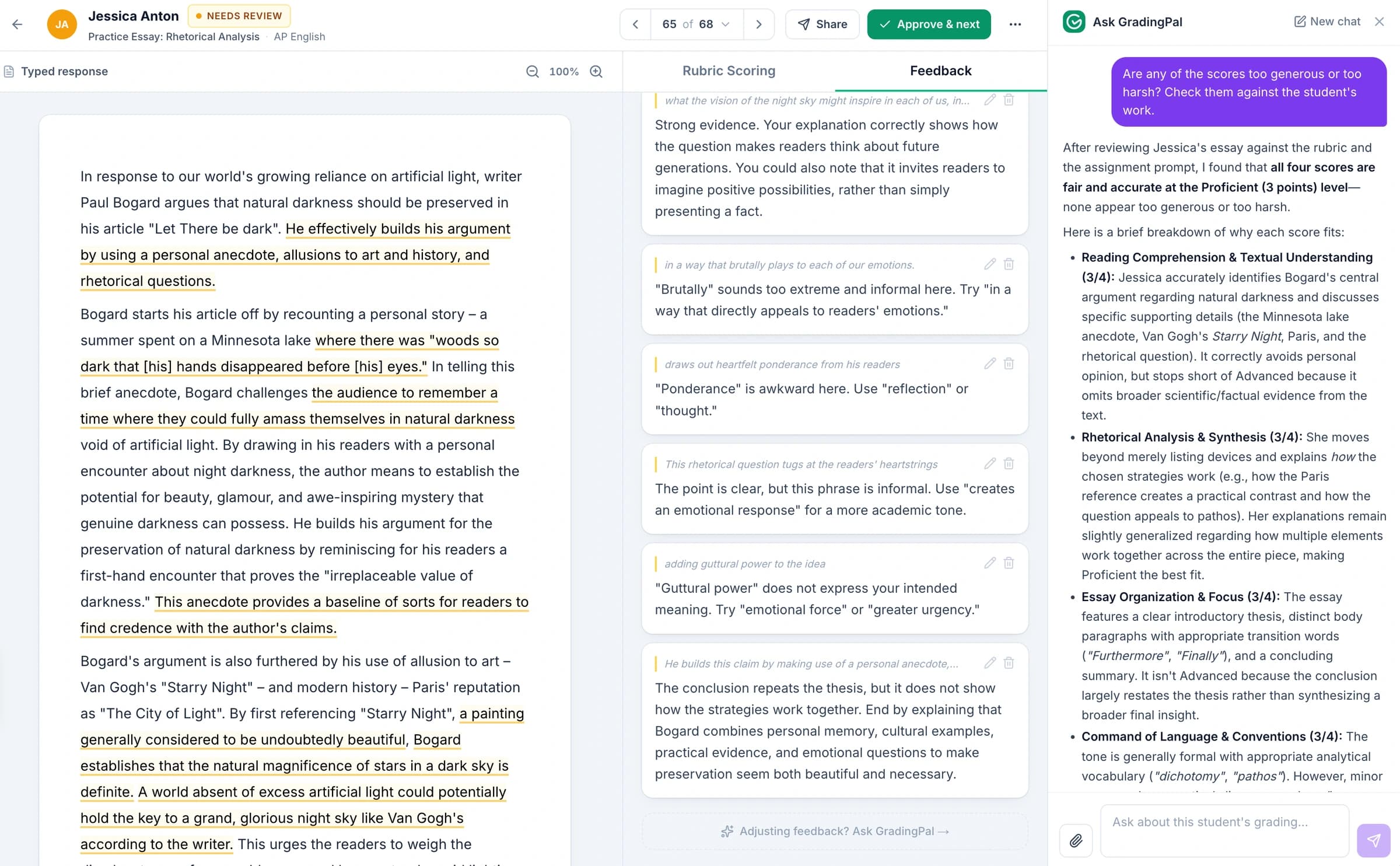
Use the assistant in the supported grading context to examine a score or propose a change. Refer to the criterion and the part of the response you want considered, then inspect the proposed assessment and reason.
Illustrative request: “Review whether this response meets the evidence criterion. Explain which part of the submission supports the suggested level.”
Accepted score edits record a reason so you can revisit the decision. Asking for a review is useful when a result needs closer attention; it is not a substitute for checking the rubric and the student's work yourself.
Accept the edits that improve the assessment
Proposed changes appear inline for review. Accept or reject individual edits, ask for a more precise version, and undo a change when needed. Check the affected wording, points, or comments before completing the assessment.
Describe one concrete outcome
Name the item and the intended change. “Make the feedback shorter and retain the revision task” gives the assistant a clearer objective than “make this better.”
Inspect the proposed change in context
Read the revised item alongside the source material. A more fluent comment still needs to refer to the student's actual work, and a rubric edit still needs to preserve the intended assessment.
Apply the result you want to keep
Accept the changes that fit and continue your review. If the preference should apply to future assignments, save it through grading instructions instead of repeating the same request every time.
Keep individual edits separate from class defaults
Ask GradingPal works on the current supported editing or grading context. It does not make unattended changes across every class, and this assistant workflow does not change already approved or shared results.
Use it for the item you are working on. Use grading controls for ongoing class preferences and the normal approval and sharing workflow when results are ready for students. That keeps everyday editing easy to follow.
Questions about the AI grading assistant
Can it create or revise rubric criteria?
Yes. Ask for proposed changes to criteria, performance levels, or points, then review the resulting rubric before applying it to student work.
Can it rewrite one student's feedback?
Yes, in the current grading context. Describe the improvement you want, inspect the revised comment, and accept the wording that fits the student's response.
Does a request apply changes immediately?
The assistant proposes supported edits for review. You choose which changes to accept, so you can inspect the result before it becomes part of your assessment.
Can it change grades across every class?
No. Ask GradingPal operates within the current editing context. It is not an account-wide agent making class-wide grading decisions without your review.
Can I use it to improve an answer key?
Yes, in the supported question and answer-key editing context. Check the revised answer and its relationship to the question before using it to assess submissions.
How is this different from saved instructions?
A contextual request changes the item you are reviewing. Saved instructions carry reusable preferences into new assignments for selected classes. Use each for the scope of change you intend.
Can I reject a proposal?
Yes. Accept or reject proposed edits individually and use undo where needed. Ask for a more specific revision if the first proposal does not meet your expectations.
Spend less time making the same small edits
Open an assignment, describe a concrete change, and see the proposed edit alongside the work it affects.