 Available on school plan
AI grading for your Canvas courses
Canvas is available on the GradingPal school plan. Give instructors rubric-based AI scoring, individualized student feedback, and assessment insights across writing, math, science, and other supported coursework. Work with our team to fit GradingPal into your institution's Canvas assessment process.
Reduce the marking behind every course section
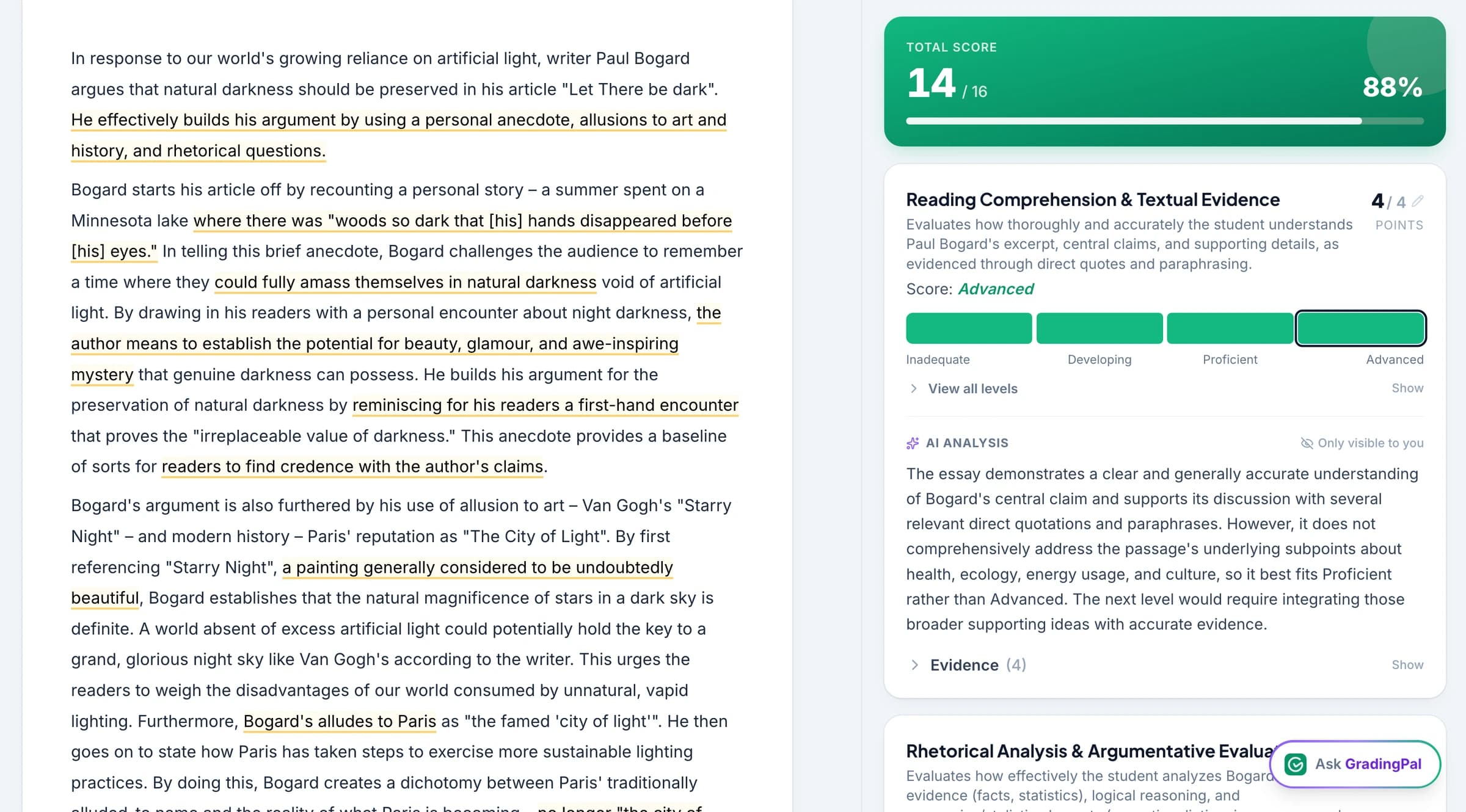
A full course creates more than a queue of submissions. Instructors need to read responses, apply criteria, explain the score, and help students understand the next step. GradingPal generates scores and comments against the rubric so instructors can focus their time on assessment review and teaching.
For institutions using Canvas, the school-plan conversation starts with that course work. Bring the assignments and feedback routines your instructors use, then evaluate how GradingPal's assessment capabilities fit the process you want to support.
Assess more than essays
GradingPal supports different kinds of submitted work and generates rubric-based scores and feedback. That matters when an institution is evaluating a tool for departments with different assessment needs.
Extended writing and source-based responses
Assess argument, evidence, analysis, and organization against instructor criteria. Review the explanation behind a suggested level and return feedback that identifies a specific revision. Explore essay grading.
Math, calculations, and handwritten working
Assess answers and methods in readable handwritten or digital work. Use the rubric to allocate credit to the reasoning and steps the course requires. Explore math grading.
Science explanations and investigations
Assess the submitted data analysis, scientific reasoning, and conclusions against the assignment criteria. Inspect the response before approving the result. Explore science grading.
Keep scoring decisions with the instructor
A suggested total is more useful when the instructor can see how it was reached. GradingPal provides criterion-level assessment evidence alongside the original work. Review the response, adjust a score where needed, and refine the student-facing comment before sharing.
Use department or instructor rubrics to express what earns credit. Add grading instructions for the methods, terminology, and feedback focus relevant to the course. The criteria remain explicit even when assignments vary across sections.
Give students guidance they can act on
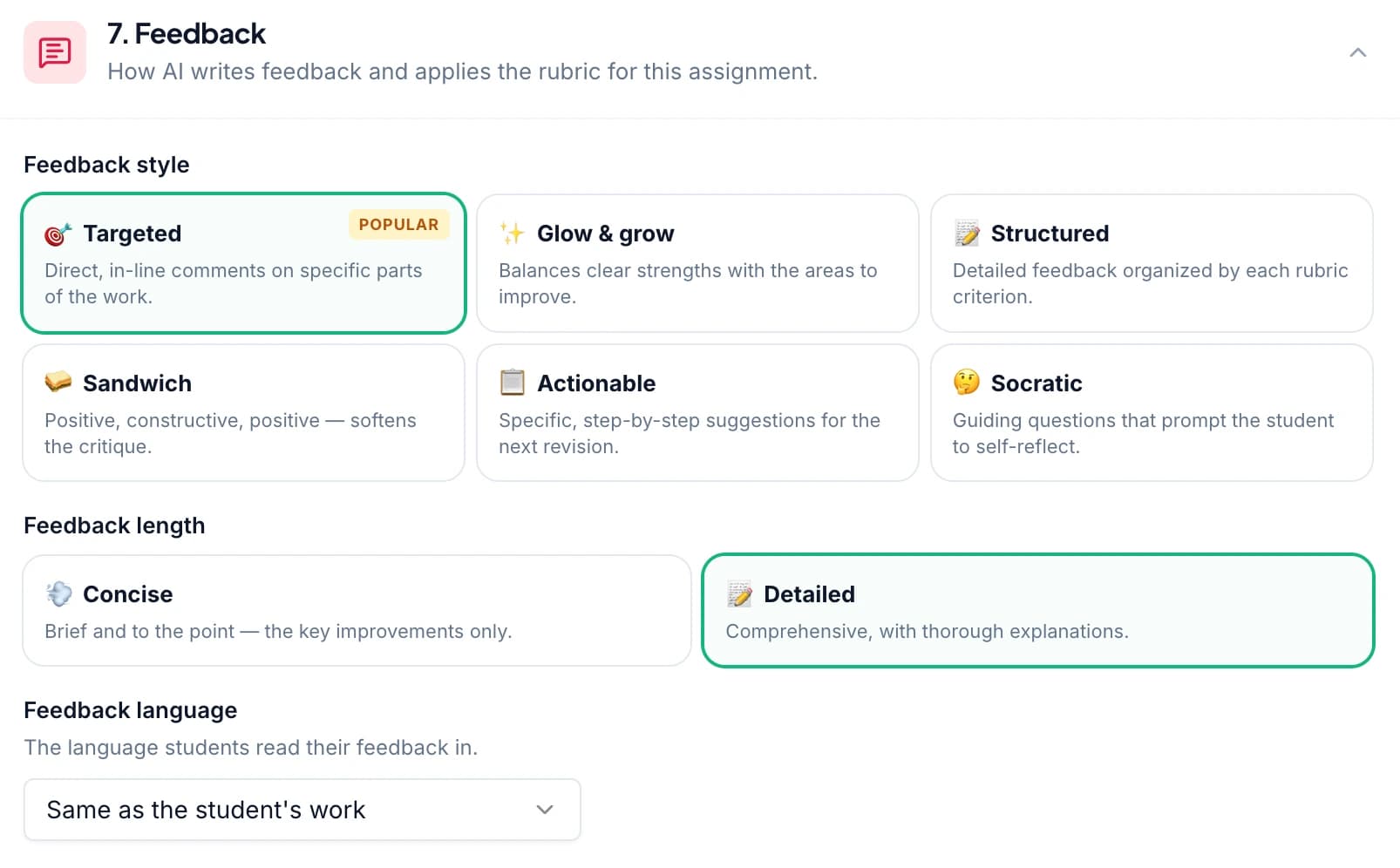
Choose a feedback style and length that fit the assessment. A short practice task may need one correction; an extended response may need a structured explanation of evidence and reasoning. Instructors can edit the wording or ask the contextual AI assistant to propose a revision.
For example, a comment might ask a student to explain why a cited result supports the conclusion, then apply that explanation in the next draft. This is an illustrative use of feedback; the instructor selects the action appropriate to the course. Explore student feedback.
Use assessment patterns to guide course teaching
With performance analytics on the appropriate plan, review common strengths, recurring difficulties, and question-level results across approved work. Use the supporting responses to decide whether the next class needs a worked example, a discussion, or targeted practice.
Optional standards mastery tracking organizes approved aligned evidence across assignments when that approach fits the course. Instructors can also continue using assignment points and percentages. Neither feature requires every department to adopt the same assessment philosophy.

Evaluate the workflow with a representative assessment
Bring a familiar course assignment, its rubric, and examples of the supported submissions you need to assess. Review the scoring evidence and comments with instructors who know the course expectations.
Then discuss the Canvas setup, class and role requirements, assignment handling, feedback return, and reporting needs with our school team. A representative assessment makes the conversation specific: what work enters the process, who reviews it, what students receive, and how the institution wants to support adoption.
Plan access and adoption with your institution
Canvas is available on the school plan. Contact the team to discuss your institution's configuration, expected users, and the supported integration workflow for your setup.
Review GradingPal for schools for the broader educational and adoption case, and security information for the student-data review. If you want to assess the grading experience before that conversation, use supported assignment files in GradingPal and examine the scores and feedback directly.
Questions about GradingPal and Canvas
Is Canvas available with GradingPal?
Canvas is available on the school plan. Contact our team to discuss the integration setup and assessment workflow appropriate to your institution.
Can instructors evaluate the grading before a school rollout?
Yes. Use a representative assignment and supported files to inspect rubric scores, evidence, feedback, and teacher controls. A school demo can then connect those findings to the institution's adoption requirements.
Does GradingPal support math and science courses?
Yes. It assesses supported math and science work, including readable handwritten calculations and written explanations, against instructor-provided rubrics. Review the work and proposed results before using the assessment.
Can we keep our course rubrics?
Yes. Your criteria define the assessment. Instructors can use their own rubrics and relevant instructions, then inspect and edit the resulting scores and comments.
Are every Canvas sync option and account role covered here?
This page describes the school-plan offering and GradingPal's assessment capabilities. Discuss the specific class, role, submission, and grade-return requirements with our team for your Canvas configuration.
Can instructors use points instead of mastery levels?
Yes. GradingPal supports rubric-based assignment points and feedback. Standards tagging and mastery tracking are optional choices for courses that want that additional evidence view.
How do we start the school-plan conversation?
Share your institution, Canvas setup, representative assessment types, and intended users through the contact page. Our team can use those details to discuss the workflow and evaluation.
How is the setup timing agreed?
Discuss your institution's configuration and intended evaluation with the school team. Canvas is available on the school plan; this page does not promise a universal activation time for every setup.
Explore related features
See what GradingPal can do with your course assessments
Bring one assignment your instructors know well and evaluate the scoring, feedback, and teaching value together.