Give AI grading your classroom instructions
Tell GradingPal how to apply your assignment expectations and how you want feedback to sound. Add the terminology, methods, and revision priorities your students know, then save reusable instructions for selected classes. Spend less time repeating the same guidance in setup and comment edits.
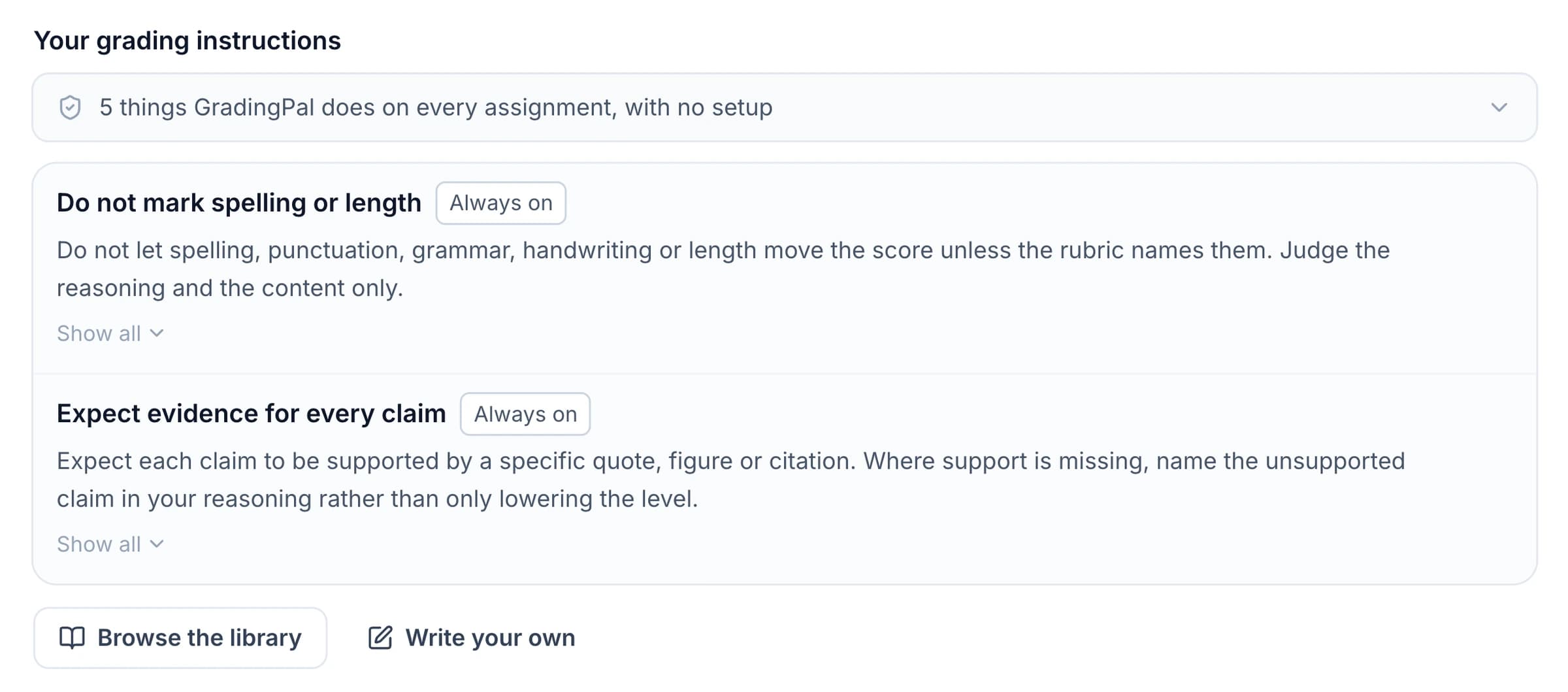
Add the context behind the assignment
A rubric describes what earns credit, but your classroom context may need more explanation. Students might have learned a particular method, a familiar reasoning structure, or a specific way to support a claim. Instructions let you provide that context before GradingPal drafts the assessment.
Use clear wording that names the action or interpretation you want. A useful instruction makes an expectation easier to apply across the work without obscuring the criteria students were given.
Separate scoring expectations from feedback preferences
Keep criteria, performance levels, and point allocations in the rubric. Grading instructions clarify how to interpret the task and apply those expectations. Feedback instructions describe how to explain the assessment to students.
For example, allocate method credit in the rubric, clarify whether alternative valid methods are acceptable in a grading instruction, and ask for a guiding question in the feedback instruction. Each part has a specific job. If a requirement changes the score, make the associated criterion explicit.
Use instructions that name the teaching point
Choose a concrete focus rather than asking for generically “better” grading or feedback. The following prompts are illustrative examples to adapt to your own rubric and lesson.
Writing: connect evidence to the claim
“When commenting on evidence, identify the example the student used and ask for one sentence explaining how it supports the claim.” This gives the comment a revision action rather than a broad request to improve analysis.
Math: examine the method and locate the error
“Consider valid alternative methods when the working is shown. Explain where the reasoning first needs correction.” Use this alongside rubric criteria that state how method and answer credit are awarded.
Science: connect the conclusion to the data
“Focus feedback on whether the conclusion is supported by the student's recorded results. Ask the student to explain the relationship using the data they submitted.” Review the science and the task's expectations when checking the result.
Early drafts: keep the next step manageable
“Use the vocabulary from our rubric. End with one specific revision priority and an encouraging, direct sentence.” A focused instruction helps keep a first-draft comment aligned with the stage of learning.
Save the preferences you use repeatedly
Use the instruction library and save always-on guidance for selected classes. New assignments in those classes carry the relevant instructions forward, reducing the need to re-enter familiar expectations.
You can keep a preference such as “use claim, evidence, reasoning” ready for the class where that language is taught. The saved wording remains visible so you can check what will guide the next assessment rather than relying on a hidden default.
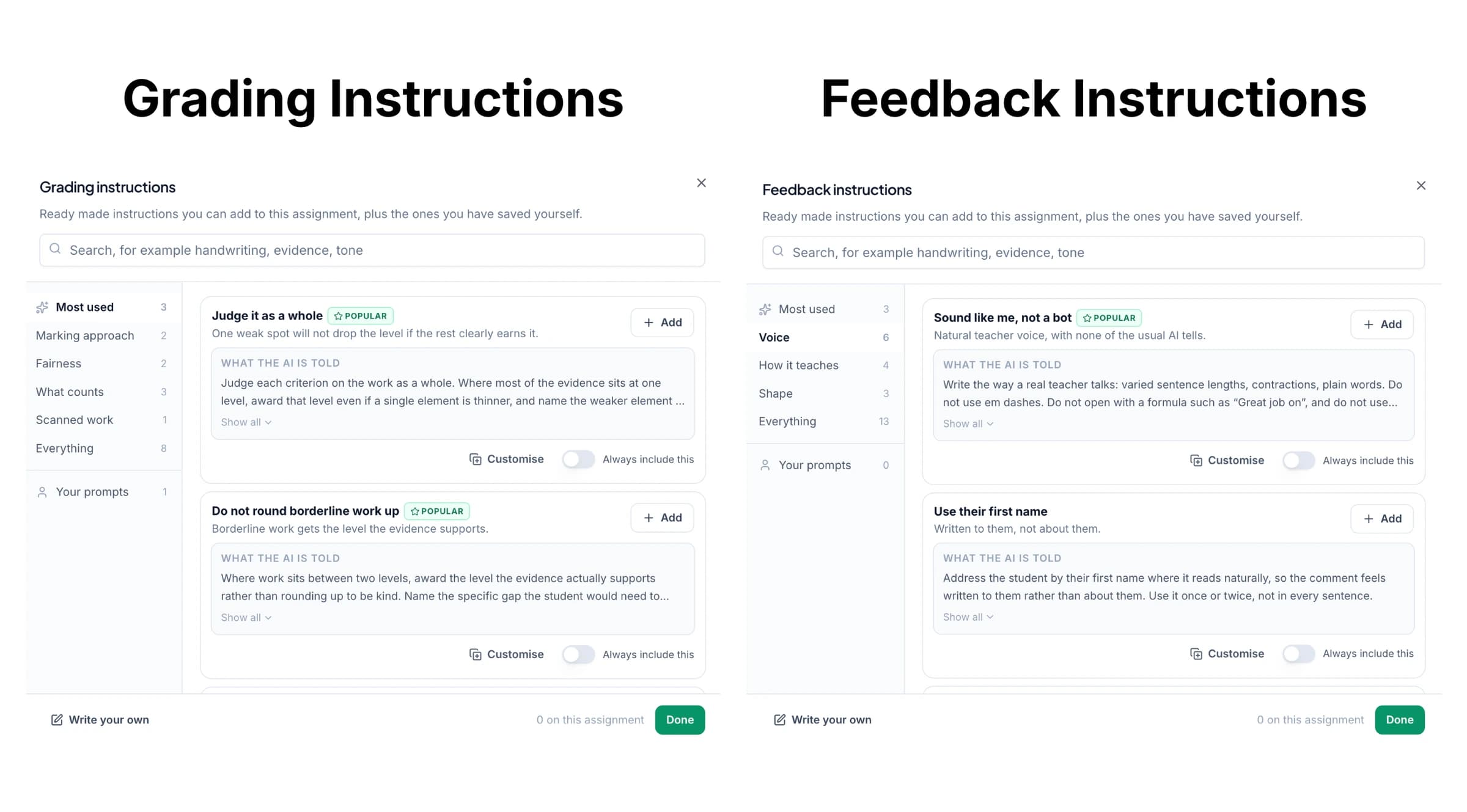
Make an assignment-specific exception when needed
Review the instructions shown during assignment setup. Remove or adjust a preference that does not fit the task: a practice worksheet, a first essay draft, and a final exam may need different feedback in the same class.
Always-on instructions apply to new assignments; saving one does not retroactively rewrite completed assessments. If an existing student's score or comment needs a change, use the supported review workflow for that assessment.
Make the feedback sound like your teaching
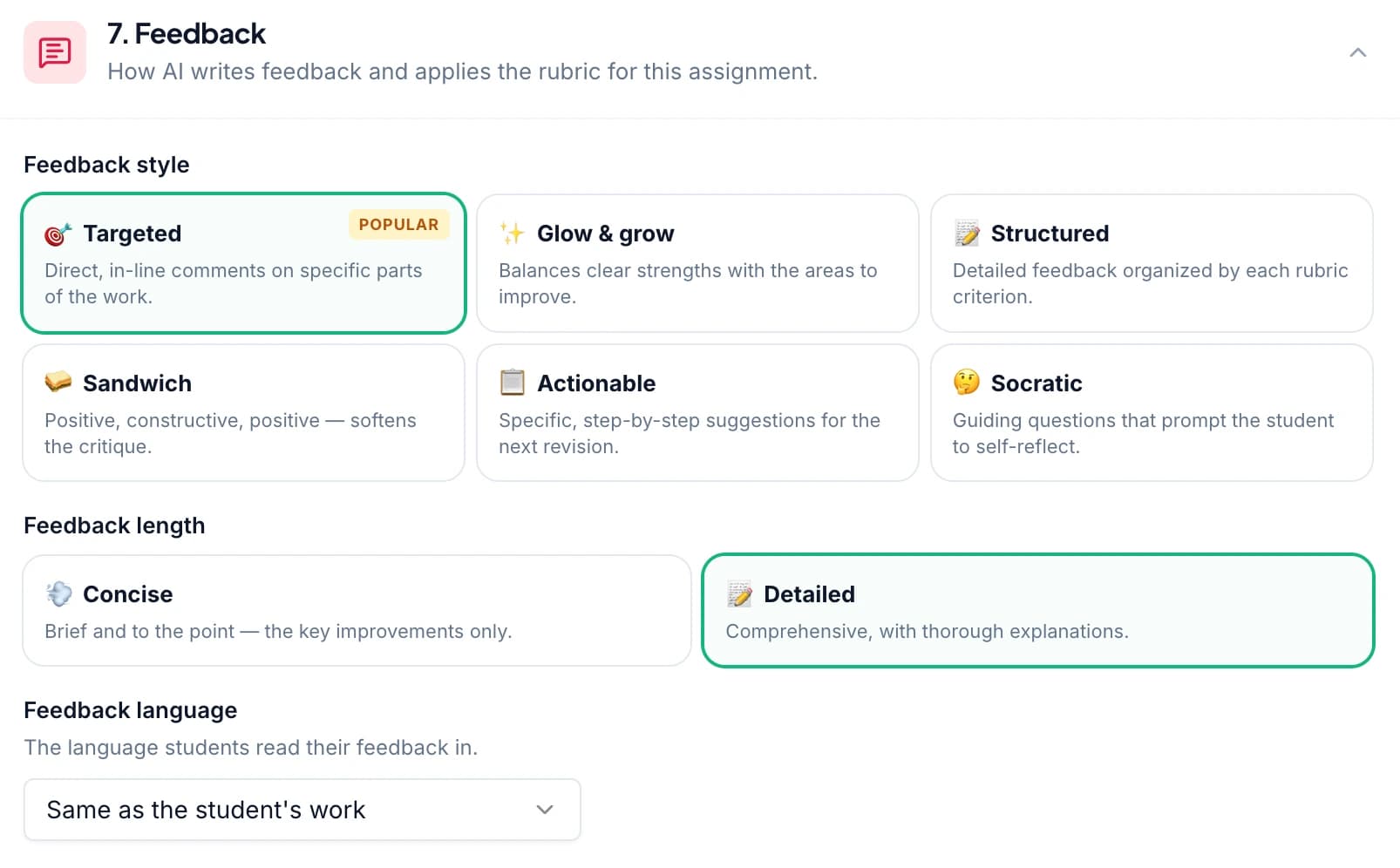
Name the terms students recognize and the level of explanation you want. Combine instructions with one of GradingPal's six feedback styles, concise or detailed comments, and a supported feedback language.
The goal is guidance students can understand and apply. A familiar phrase connects the comment to a lesson; a specific next step tells them what to do with it. You can still edit an individual comment to reflect the student's work and the context you know.
Review how the instructions affected the assessment
Inspect the rubric scores and evidence alongside the student response. Check that the instruction clarified the assessment rather than adding an unintended requirement. Adjust a result or comment when your judgment calls for it.
Use Ask GradingPal for a supported contextual edit, such as shortening one student's feedback. Use a saved instruction when the preference should apply to future assignments. That distinction helps you choose the right scope for the change.
Questions about grading instructions
Are instructions required for every assignment?
No. A clear rubric may already contain the expectations you need. Add instructions when classroom context or feedback preferences will make the assessment more useful.
Can I reuse instructions across classes?
Yes. Save always-on instructions for selected classes. Review the wording and class scope so each instruction suits the work it will affect.
Will a saved instruction change earlier grades?
No. Always-on guidance applies to new assignments. Existing assessment results remain part of their own grading and review workflow.
Can an instruction assign a particular student a mark?
Instructions guide assessment context and feedback. Make an individual score adjustment through the grading review workflow, with the student's work and rubric evidence in view.
Where should I put point values or partial-credit rules?
Put the assessed criteria, levels, and points in the rubric. Instructions can clarify how the expectation applies, but the scoring rule should be visible in the assessment criteria.
Can I use a different instruction for a final assessment?
Yes. Inspect the active instructions during setup and remove or change those that do not fit. A class default should not prevent an assignment from using the right expectations.
Can feedback use terms from my lessons?
Yes. Name the vocabulary and explain the feedback focus. Review the comments before sharing so the language accurately refers to the student's response.
Set the context once and make the next review easier
Bring a familiar rubric, add one useful instruction, and see how GradingPal applies it to the work your students submit.