Track standards mastery from the work you already grade
GradingPal automatically organizes approved assessment evidence by learning standard. See class progress, open a student's work behind a result, and choose how evidence combines into a mastery level. Keep grading assignments while building a clearer picture of what students have demonstrated over time.
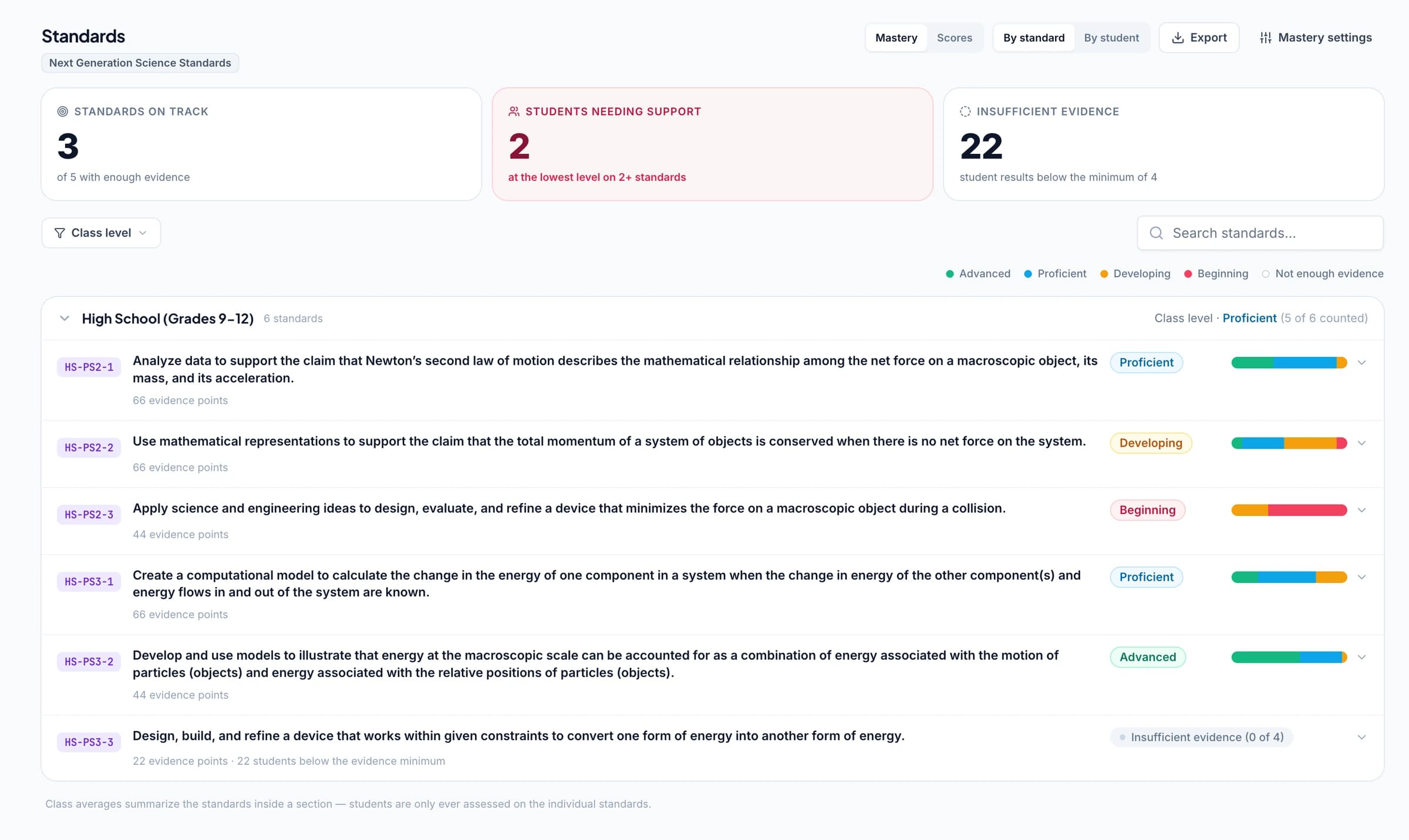
Follow one learning goal across different assignments
A worksheet, a lab explanation, and a later exam can provide evidence of a related skill. When you approve results on questions or rubric criteria with accepted standards tags, GradingPal adds that evidence to the relevant standard's record.
You no longer need to reconstruct the story from separate assignment totals. Open the standard to see the contributing work, then decide what the student has demonstrated and what further practice or assessment would be useful.
See class progress and individual learning needs
Start with the view that answers your teaching question. The class overview shows standards grouped by strand, with levels, distributions, and evidence information. The student view brings students and standards together so you can identify a specific learner or skill to examine.
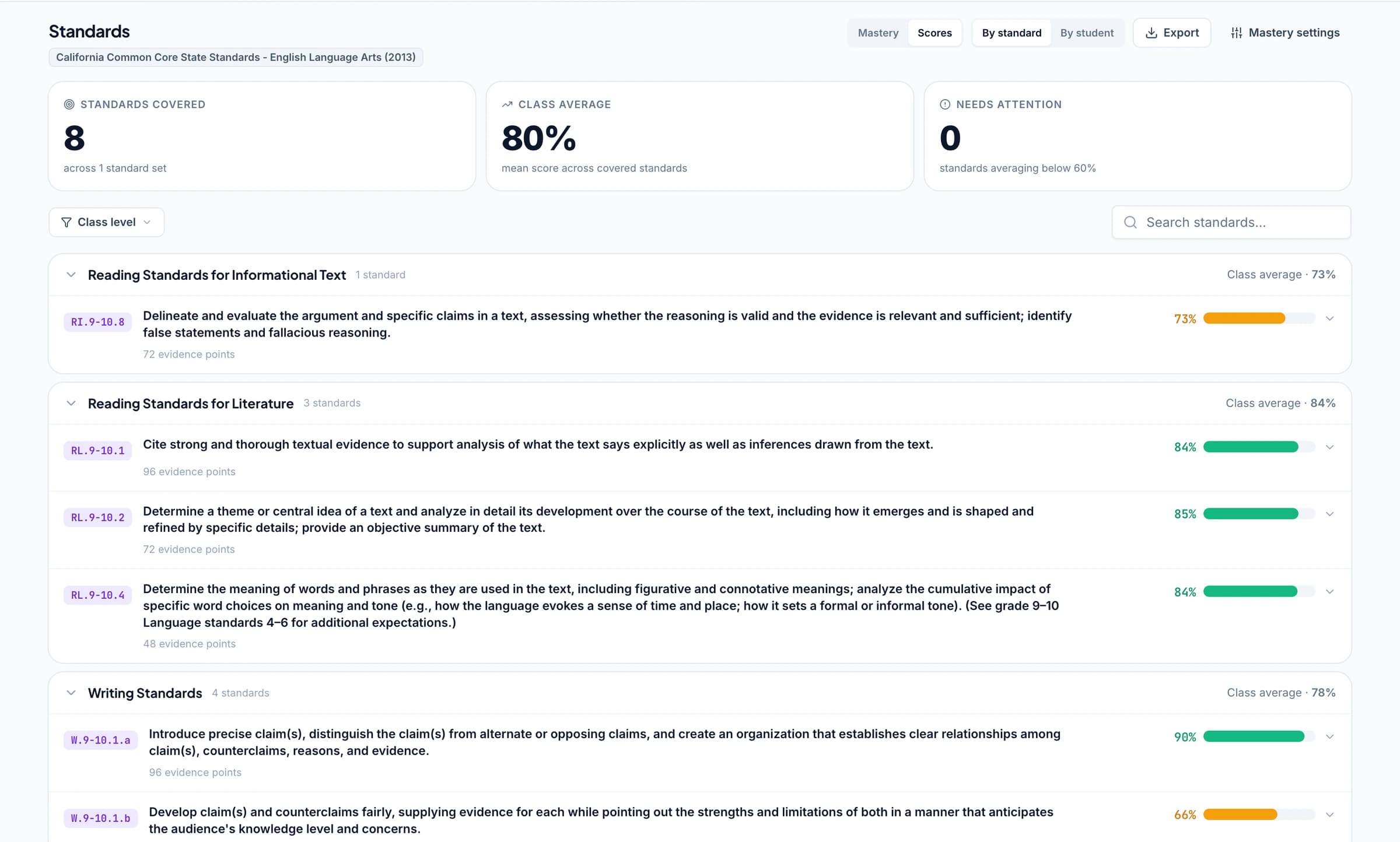
1.Review the class by standard
See where the class stands and how students are distributed across the levels. Check the evidence counts and students with insufficient evidence before interpreting the overall picture.
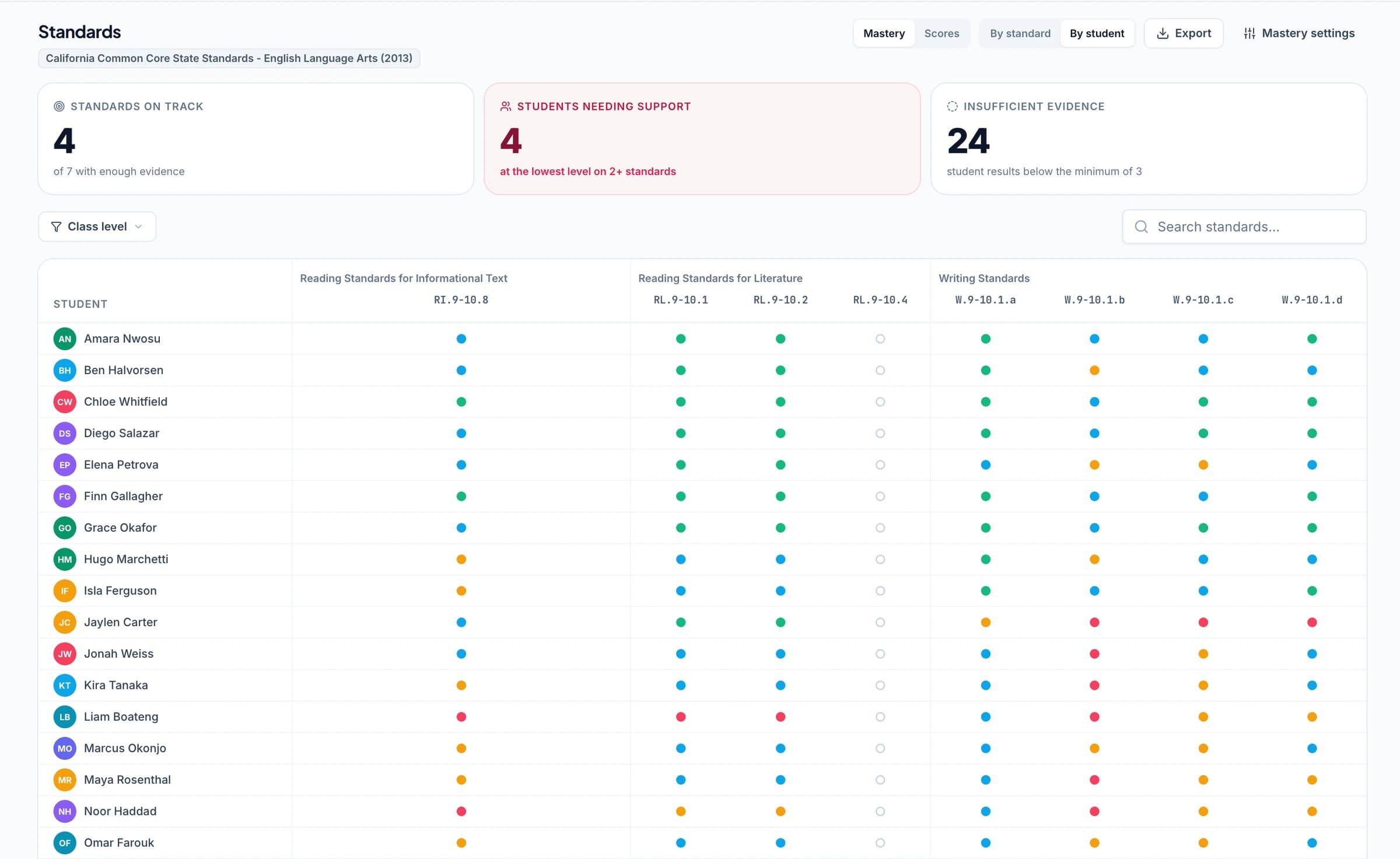
2.Review one student across standards
Use the student grid to identify strengths and areas needing another demonstration. Teacher-set levels and insufficient evidence have distinct indicators so you can see how a result should be read.
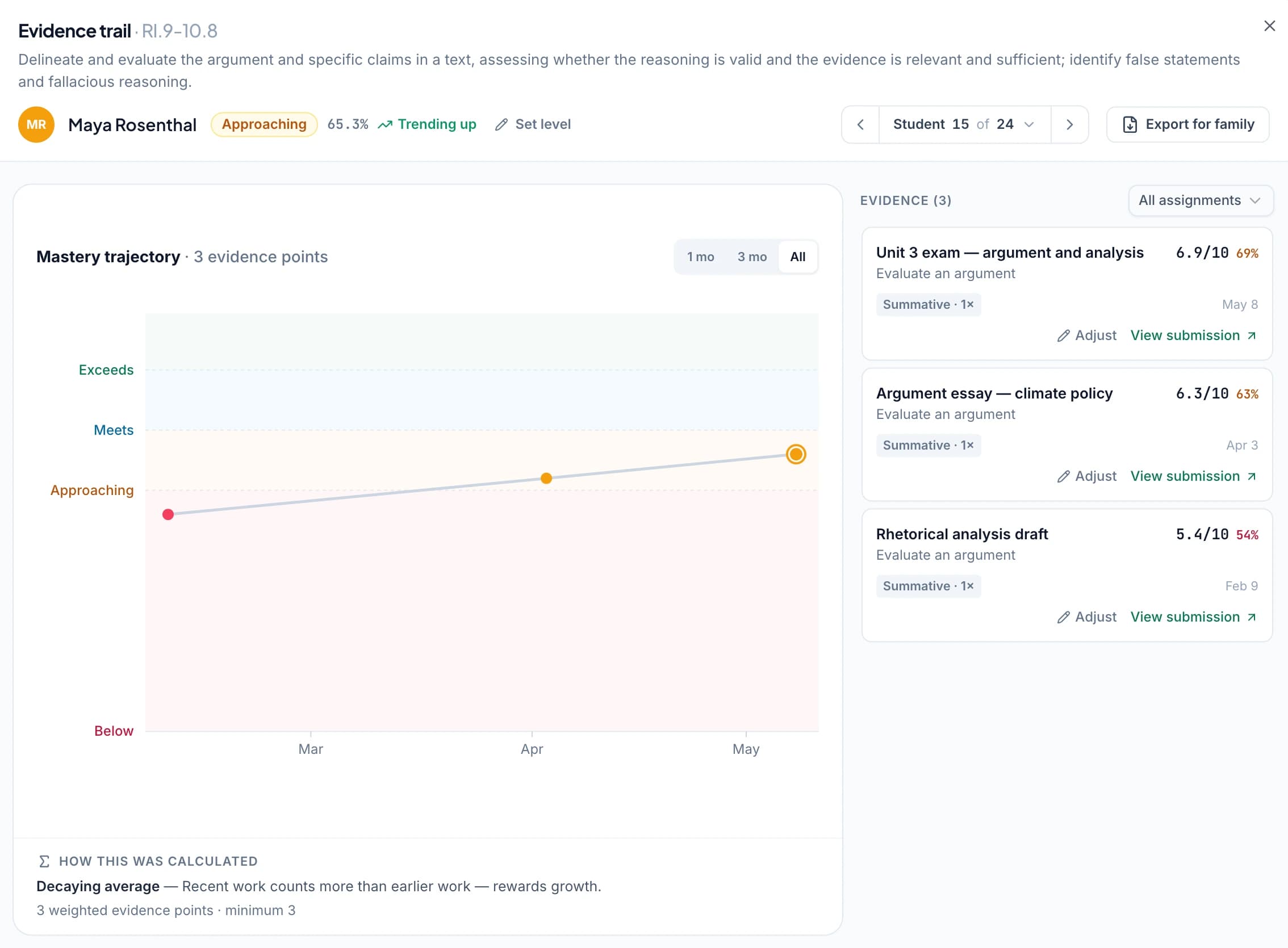
3.Inspect the trajectory over time
Open a student's standard to see the sequence of evidence and the mastery trajectory. Compare the dates and assignment contexts before concluding what a change means.
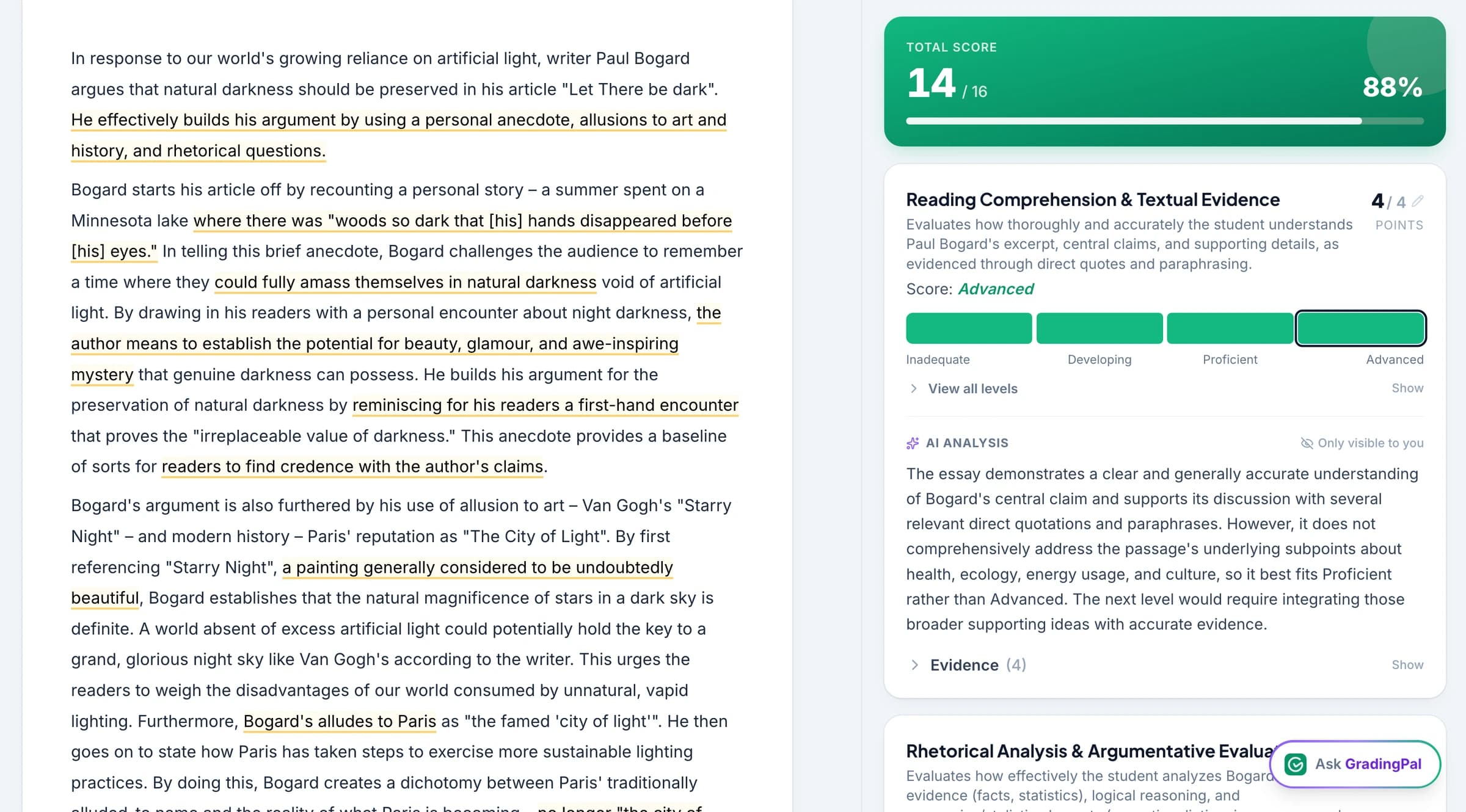
4.Return to the original submission
Open the assessment behind an evidence item to review the student's response, the criterion, and the approved score. Use the actual work to explain progress in a student or family conversation.
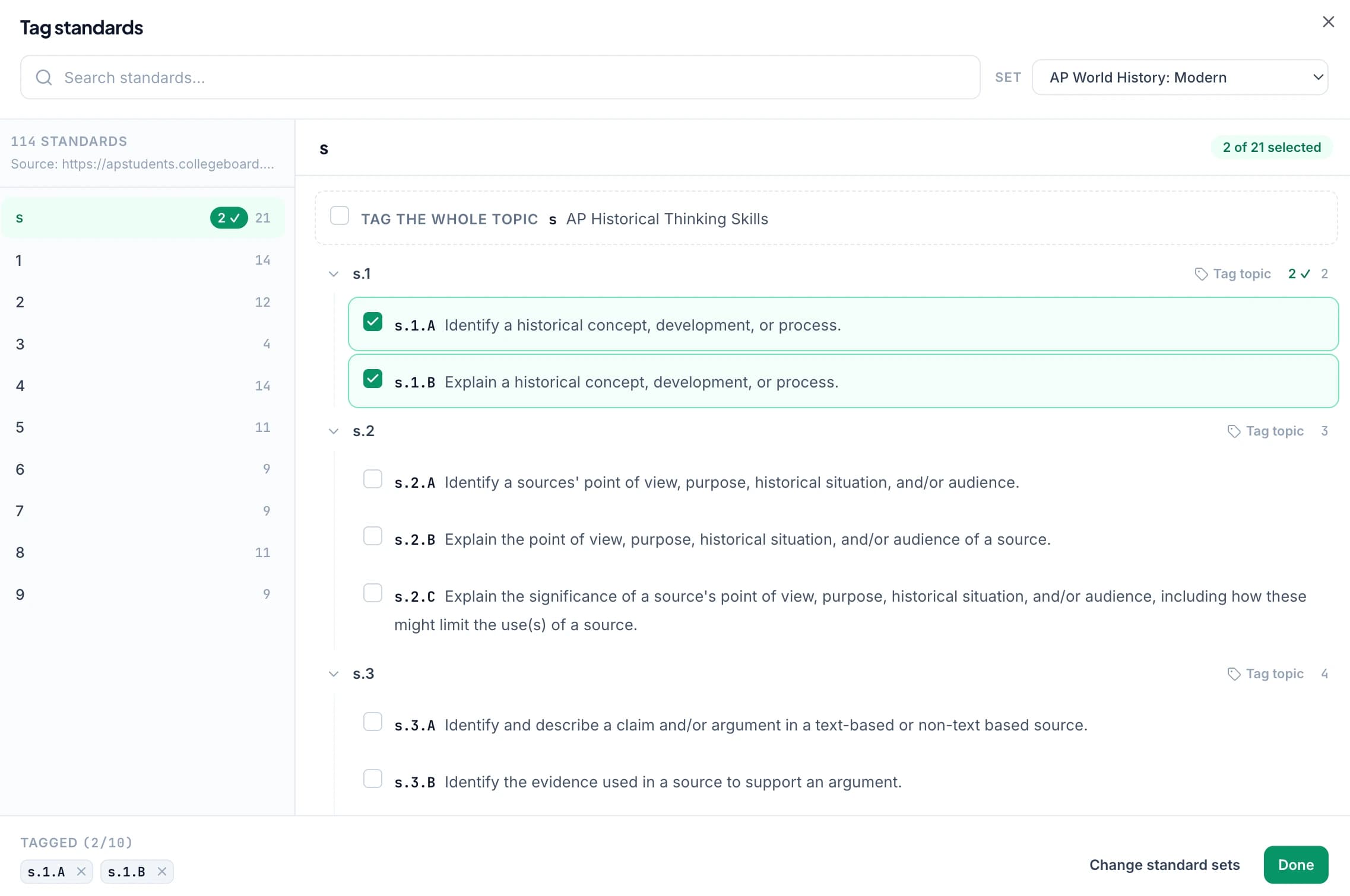
Choose your standards and review suggested alignment
Select the standards sets, grades, and strands relevant to the class. GradingPal supports up to five sets per class and can suggest standards for questions or rubric criteria. Accept the tags that match what the task actually assesses; dismiss those that do not.
Use Common Core, NGSS, Texas TEKS, and other supported state sets, alongside the relevant AP, IB, or exam-board resources. Coverage includes all 50 US states and Washington, D.C.; check the selected course and version in the standards directory. Library rubrics may already contain tags, which you should review when adapting them.
Choose how the gradebook calculates mastery
Mastery levels are calculated from approved evidence using your selected settings. You control the method, scale, weighting, and minimum evidence requirement. The reported level is an explainable calculation rather than a separate AI judgment about a student's ability.
| Method | How to use it in your reporting approach |
|---|---|
| Simple average | Combine the included evidence without an additional preference for recency. |
| Decaying average | Give more influence to newer evidence using the configured weighting. |
| Most recent attempts | Focus the calculation on the selected recent evidence window. |
| Most frequent level | Report the level demonstrated most often in the qualifying evidence. |
| Highest level | Use the highest demonstrated level under the chosen settings. |
Review the calculation explanation beneath a trajectory when you need to understand how a result was produced. The same evidence can lead to different summaries under different methods, so choose the approach that fits your school's assessment practice.
Set the proficiency scale and the role of practice
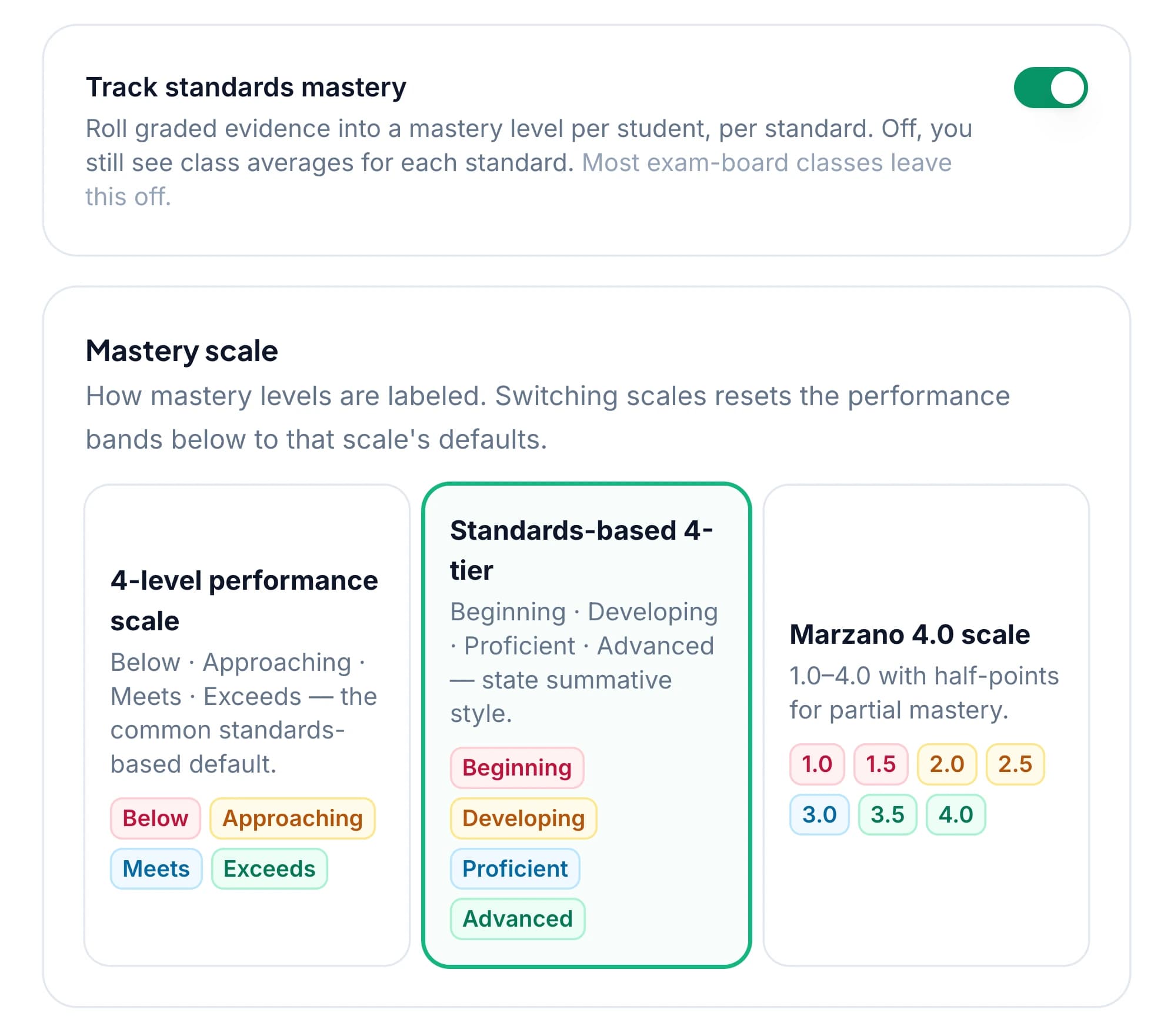
Choose from supported scales, including Below, Approaching, Meets, and Exceeds; a state-style four-tier scale; or the Marzano-style scale with half-points. Edit the score thresholds to match your reporting approach, with the lowest level beginning at zero.
Give assessment categories the appropriate weight. A test can contribute more than a quiz, while practice can remain visible without moving the calculated level. Set a minimum amount of qualifying evidence so the gradebook reports insufficient evidence when the requirement has not been met.
Inspect the details before changing a setting
Preview the effects of changing a method or scale, including the impact on existing teacher adjustments. The class summary uses the median student level, with ties resolved to the lower band. Evidence weighting also contributes to the minimum-evidence calculation. Keep these details accessible in an expanded calculation explanation for teachers who need them.
Make a teacher adjustment with a clear reason
Set a student's level on a standard when your professional judgment calls for it, and record the reason. The computed result remains visible, the supporting work stays available, and you can revert to the calculated level.
You can also adjust what a particular evidence item contributes without changing the assignment grade. That distinction is useful after an additional demonstration or reassessment: the assignment mark and the standards summary serve different reporting purposes. Teacher-set results remain identified in the interface and reports.

See what a new assignment contributes
The assignment standards recap compares performance on that task with the broader standards picture. Review which aligned results contributed and how the overall summary changed. Practice evidence remains visible even when its configured weight means it does not alter mastery.
Use that recap after reteaching or revision to inspect the next demonstration of the skill. Pair it with classroom analytics when you want recurring response patterns and suggested instructional activities alongside the standards record.
Export progress reports with the supporting evidence
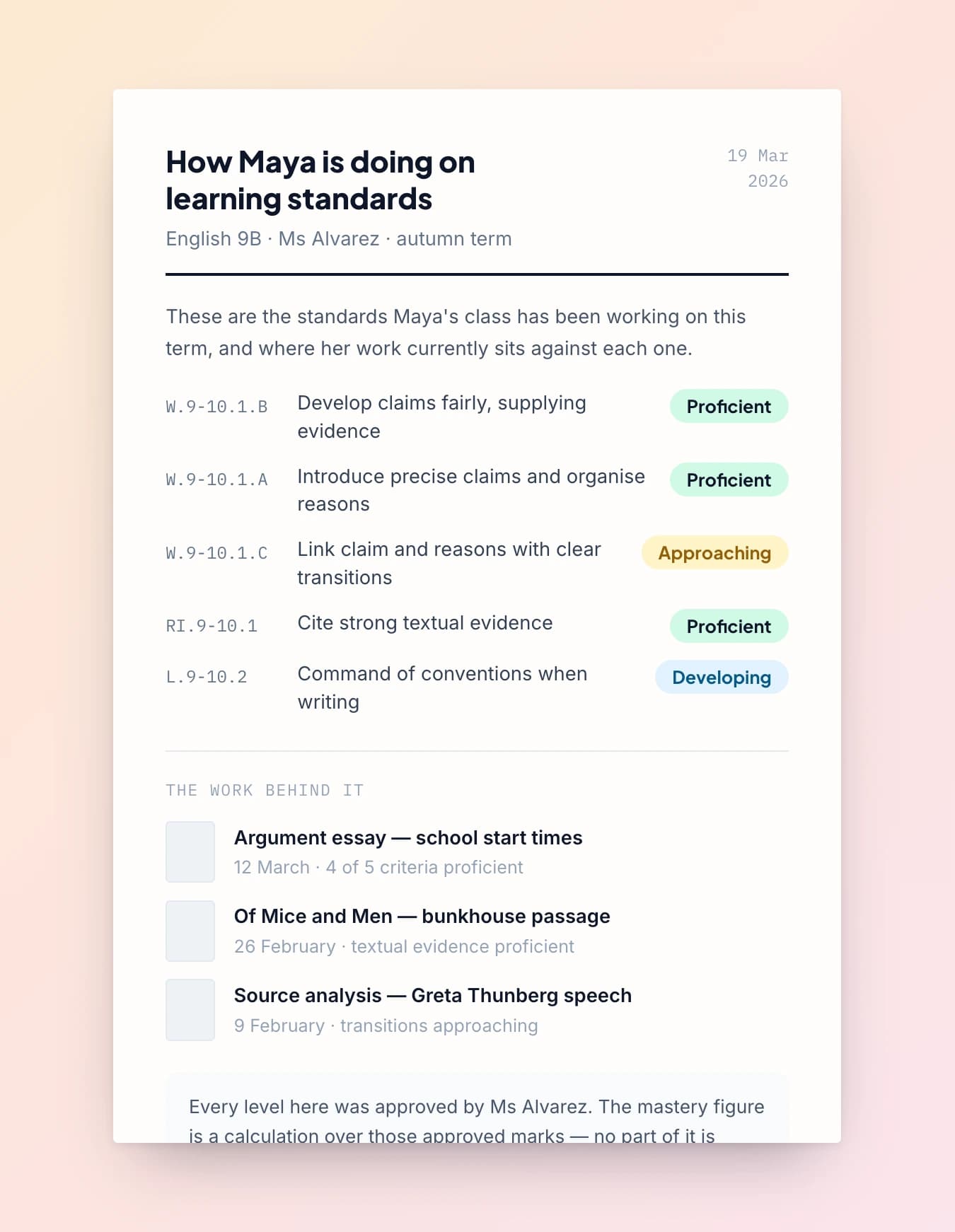
Choose a report that fits the conversation. A family-facing PDF explains an individual student's progress in plain language and includes recent work. Staff exports can show the class by standard, while evidence exports provide the assessment items behind the results.
Use the available PDF, Excel, or CSV formats for the appropriate report. Select all time, the last 30 or 90 days, or a custom date window; the export records the selected period. Share family reports through your school's normal process. These exports help explain classroom assessment and do not replace your institution's system of record.
Add standards tracking without changing everything else
You can keep points and percentages. Selecting standards gives you a per-standard view; mastery levels are an additional choice. GradingPal's rubric scoring and student feedback work even when you do not enable standards tracking.
For a teaching team, agree on the standards sets, evidence categories, calculation settings, and reporting language you intend to use. Discuss school adoption and review student-data protections as part of that evaluation.
Keep the evidence record clear when results change
Teacher-set levels and evidence-contribution adjustments have distinct roles. The interface and exports identify teacher adjustments, with the reason available to revisit. Reverting to the computed level lets you return to the result calculated under the current settings.
The existing workflow retains an evidence adjustment when the same item is regraded. Review changes to the method, scale, and selected standards sets through the available previews, including their effect on teacher-set levels. A settings change and a new demonstration of student learning are different reasons for a reported result to move.
Check the update status before interpreting a change
Approved assessments feed the standards record, and the interface indicates when an update is still being calculated. Check that state when comparing the latest assignment with the progress view. It helps distinguish a calculation still in progress from a result that has not changed.
For school review, settings changes and teacher overrides retain information about the decision and its author. Use the evidence and report views to explain the result in educator language rather than relying on internal implementation or test counts.
Questions about the standards mastery gradebook
Does AI decide whether a student has mastered a standard?
The reported result is calculated from approved evidence using your chosen method and settings. AI can suggest standards alignment for you to accept or dismiss. You inspect the evidence and can make a reasoned teacher adjustment.
Can I see which work produced a level?
Yes. Open the evidence contributing to a standard and return to the underlying assessment, criterion, and approved score. The trajectory helps you see how the evidence accumulated.
Can practice stay visible without affecting mastery?
Yes. Configure practice with zero calculation weight while keeping it in the evidence record. Review your category and threshold settings so the report reflects the role you intend practice to play.
Can I change the calculation method?
Yes. Preview the effect of a method or scale change and review any teacher adjustments affected before confirming. The calculation explanation helps you interpret the resulting level.
Do I have to use standards to grade assignments?
No. You can use rubric-based assignment scores and feedback without standards tags. You can also review per-standard percentages without enabling mastery levels.
Can I adjust mastery without changing an assignment grade?
Yes. A teacher-set standard level or an evidence-contribution adjustment is separate from the original assignment grade. Record the reason so the distinction remains clear when you revisit or share the result.
What happens when there is not enough evidence?
The gradebook identifies insufficient evidence according to your configured requirement. Use the record to decide what additional work would give the student a fair opportunity to demonstrate the learning goal.
Can I prepare reports for families and staff?
Yes. Use the available student PDF, class summary, and evidence exports for the relevant audience. Check the date window and any teacher adjustments, then distribute the report through your normal school process.
Learn more on the blog
- Standards-Based Grading: The Complete 2026 Guide for K-12 Teachers - Benefits, Implementation, Rubrics, Common Core, State Standards & Best Practices
- How to Align Rubrics to Standards: A Practical Guide for Common Core, NGSS, TEKS & State Standards (2026)
- Standards Based Grading in ELA: Rubrics for Narrative Writing
Explain student progress with the work behind it
See a standard, its evidence, the calculation, and the next teaching question in a GradingPal demo.