Control how GradingPal scores work and writes feedback
Use your rubric, add classroom instructions, and choose the feedback style, length, and language. GradingPal generates scores and comments from those expectations, with evidence you can inspect and results you can edit before sharing with students.
50 free submissions per month, shared across assignment types.
Set the criteria that determine the score
Your rubric defines what the assessment values: the criteria, performance levels, and points. Use your own rubric, review one generated for the assignment, or adapt a library rubric where your plan includes access.
A math task can allocate credit to the method and the final answer. A science response can distinguish data interpretation from the explanation. An essay can separate evidence selection from reasoning. Clear criteria let GradingPal assess the parts that matter and help you inspect each suggested score.
Tell GradingPal the classroom context behind the criteria
Instructions add details that a rubric alone may not express, such as the terminology students have learned or how you want feedback to guide revision. Write the expectation in plain language and review how it is reflected in the assessment.
| Control | What it determines | Illustrative example |
|---|---|---|
| Rubric | Assessed criteria, levels, and points | Allocate separate credit to a correct method and accurate calculation. |
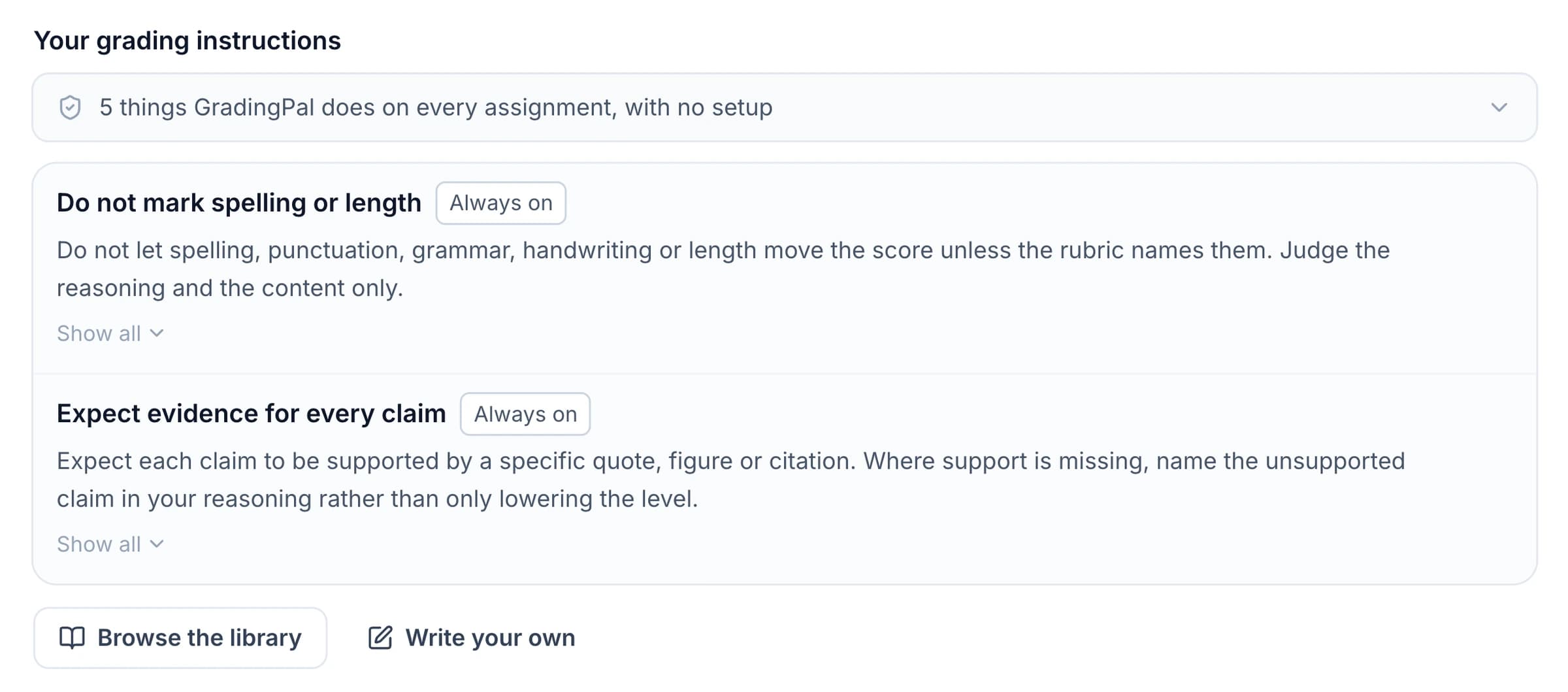
| Grading instructions | Context for applying the task and expectations | Consider a valid alternative method when the student shows the reasoning. |
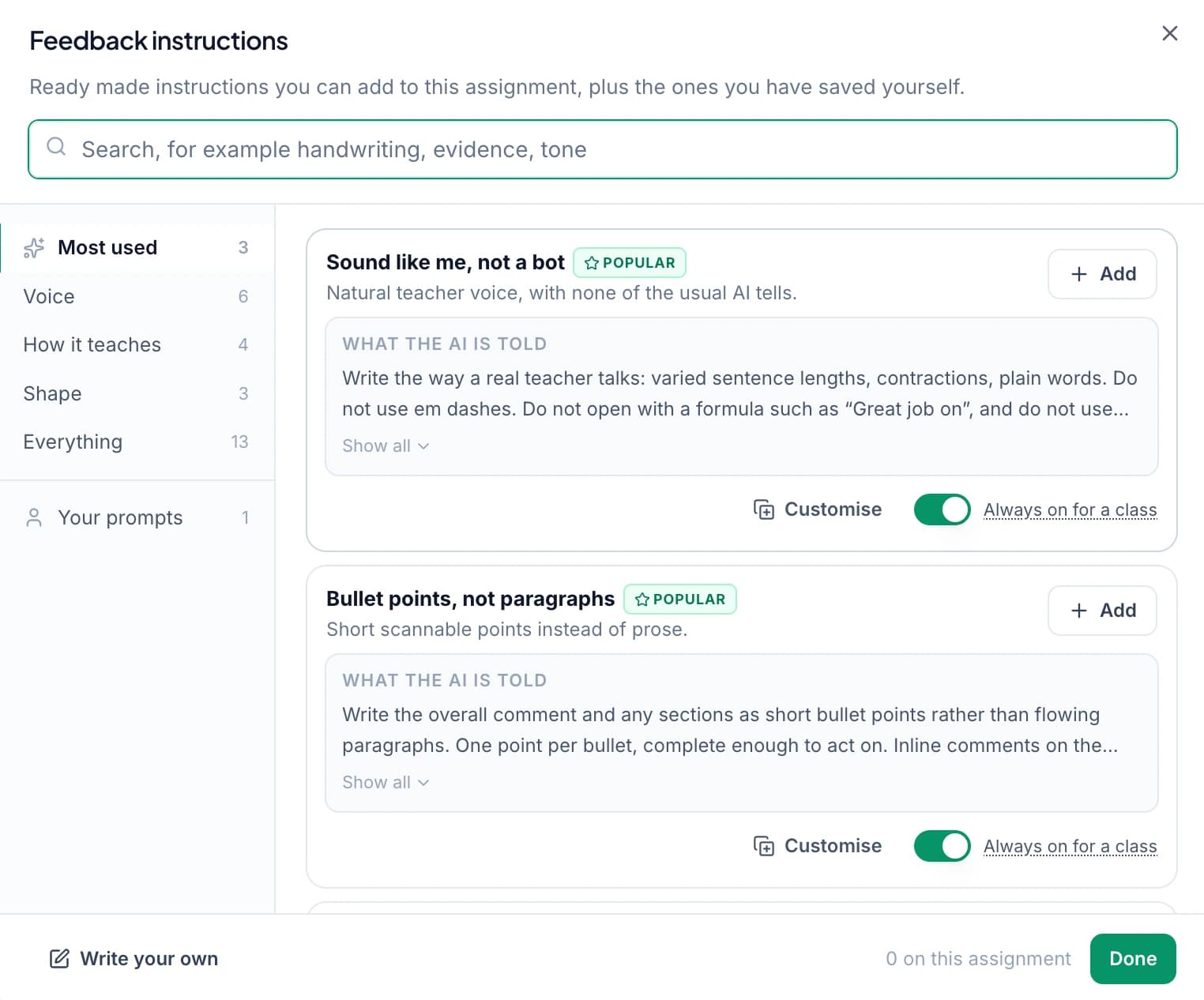
| Feedback instructions | How the guidance is expressed | End with one question that helps the student find the calculation error. |
If an expectation changes what earns credit, make it clear in the rubric. Instructions should help apply the assessment you intended, with individual results still available for your review.
Choose how students receive the explanation
Feedback controls shape the comments around your teaching approach. Choose what fits the assignment, then refine the individual wording where a student needs more context.
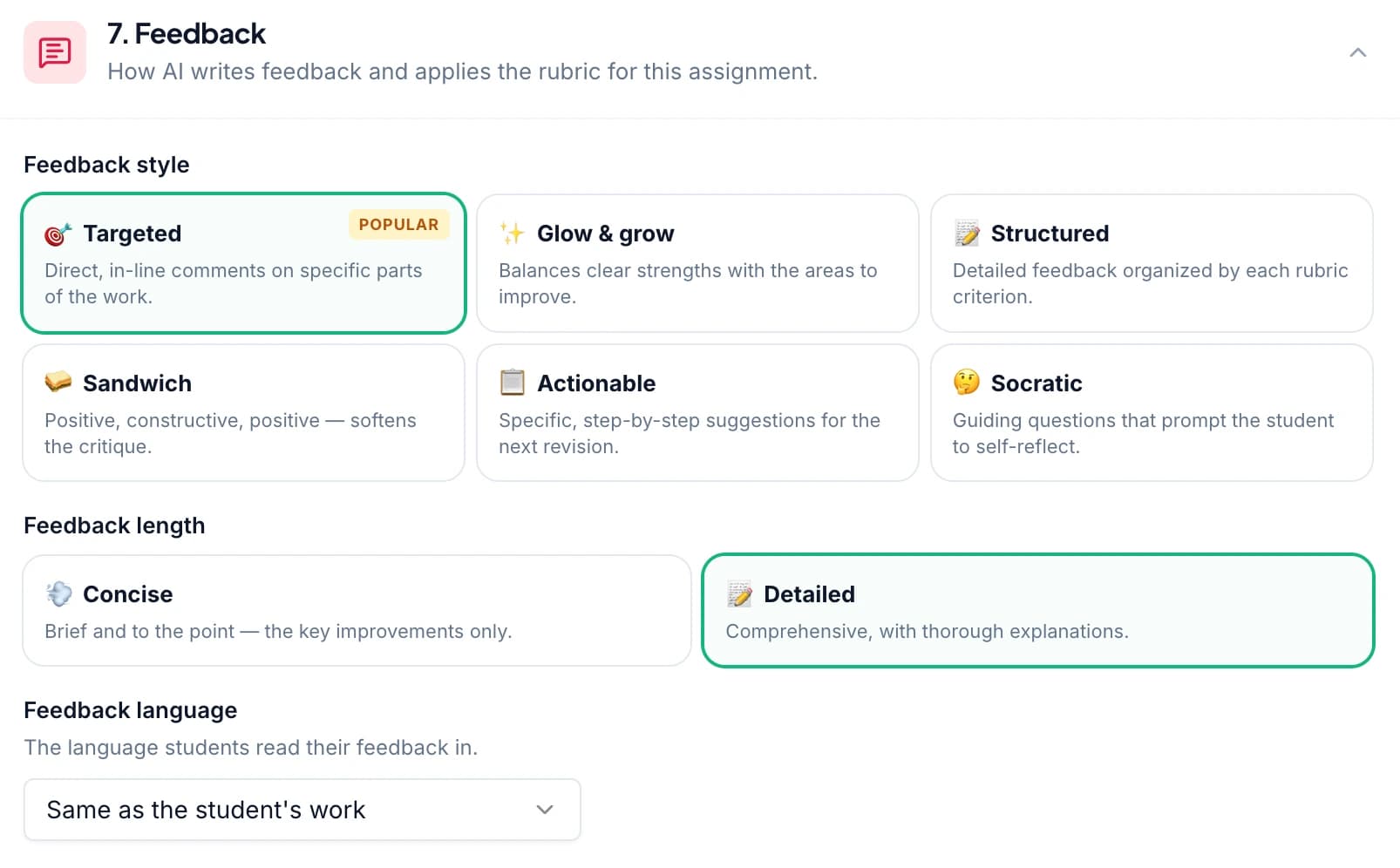
Pick one of six feedback styles
Choose Targeted, Glow & Grow, Structured, Sandwich, Actionable, or Socratic feedback. Use a focused correction for a practice response or a structured explanation for a substantial assessment. Compare the styles.
Set the length and tone
Choose concise or detailed feedback and describe the tone you want. For an early draft, ask for an encouraging explanation and a manageable revision priority. For advanced work, ask for direct academic language that identifies the missing evidence.
Use the language your students need
Choose supported student-feedback options in English, Spanish, French, German, or Brazilian Portuguese, including the available regional settings. Teacher-facing scoring explanations stay in English. See the language options.
Add grammar suggestions when useful
Give students specific language corrections alongside the assessment. Grammar suggestions do not create deductions on their own; grammar affects the score through your rubric criteria. Explore grammar feedback.
Reuse instructions across the classes you choose
Save always-on instructions for selected classes so new assignments carry forward familiar expectations. Keep separate grading and feedback preferences visible during setup. You can inspect the full wording and remove or adjust an instruction for an assignment that needs a different approach.
This reduces repeated setup and repeated editing of generic comments. A class preference might use a familiar term such as “claim, evidence, reasoning,” while an assignment-specific instruction narrows feedback to the explanation students are currently practicing. Saved instructions apply to new assignments; completed assessments are not retroactively rewritten.
Check the evidence and change the result when needed
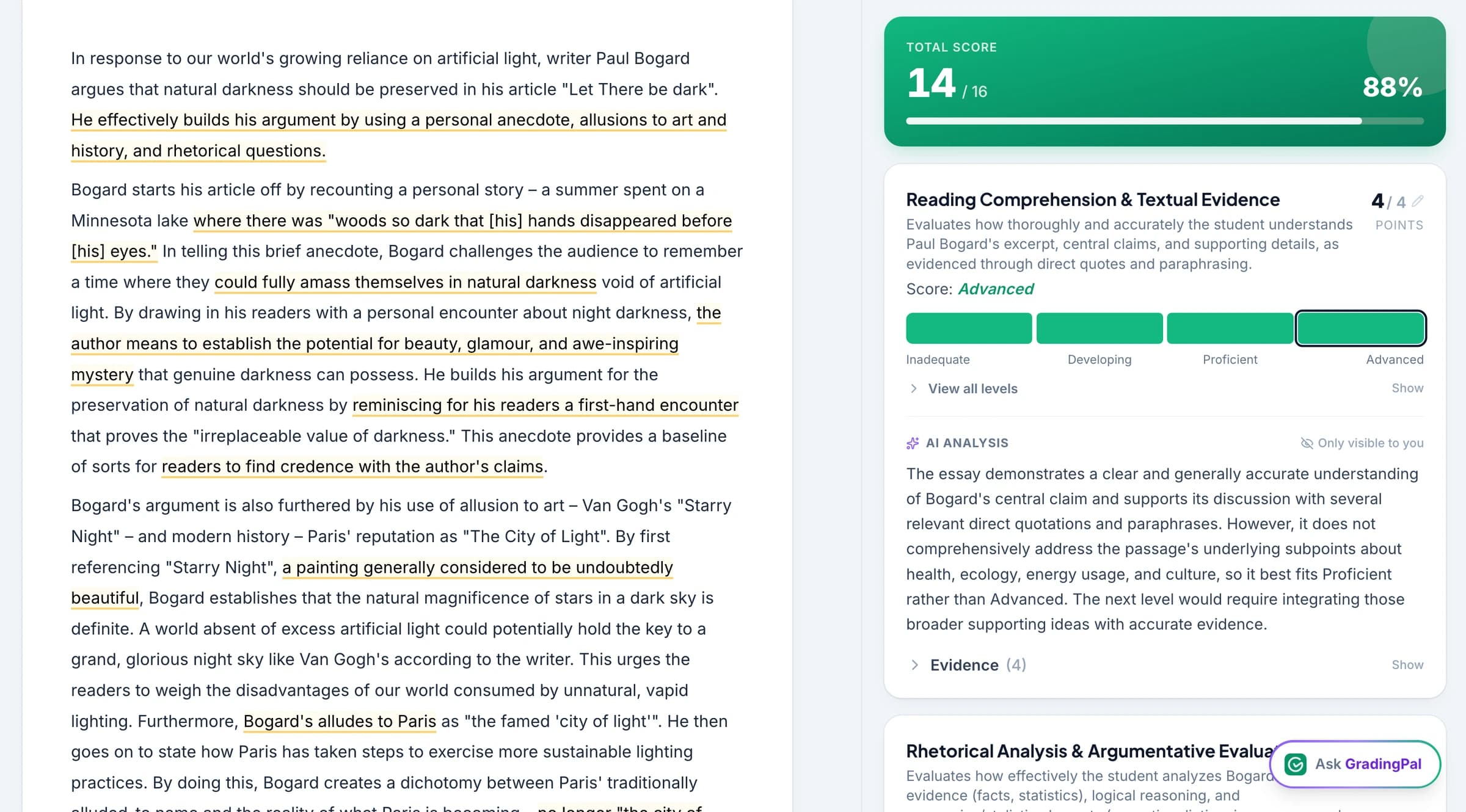
Open the student response and criterion-level scoring explanation together. GradingPal assesses each student's submitted work against the rubric, and you decide whether the proposed score reflects the evidence. Review unclear or unreadable material before approving the result.
Edit a score, improve a comment, or correct the assessment context through the supported review workflow. A setting can make the first assessment more useful across the class, while individual review lets you account for the work in front of you.
Ask the assistant to make a specific edit
Use Ask GradingPal to propose rubric, score, or feedback changes in the current editing context. For example: “Keep the point about missing evidence, but make the final sentence a question the student can answer.” Review the proposal and accept the change you want.
For a recurring preference, update the relevant instruction for future assignments. For a comment on one student's work, edit that comment. Keeping those two choices distinct prevents a local revision from becoming an unintended class-wide expectation.
Return the feedback you approve
Choose what students receive and when you share it. A revision task may call for comments without a displayed grade; a final assessment may need both. Your private scoring rationale remains separate from student-facing guidance.
Use sharing options for Google Classroom, email, or printable reports. The benefit of your settings should reach the student as a clear next action: explain a link, correct a step, or develop an answer against the rubric.
Questions about AI grading controls
What is the difference between a rubric and an instruction?
The rubric defines criteria, levels, and points. Instructions add assessment context and feedback preferences. If a requirement affects the score, express it clearly in the rubric rather than leaving the point allocation implicit.
Do saved instructions change previously graded work?
No. Always-on instructions apply to new assignments in the selected classes. Review completed work through its assessment workflow when you need to make a change.
Can I make an exception for one assignment?
Yes. Review the visible instructions during setup and adjust or remove those that do not fit. A practice task and a final assessment can use different feedback expectations in the same class.
Can I change a suggested score?
Yes. Inspect the response and scoring evidence, make the appropriate edit, and review the result before approving and sharing it.
Does changing the tone change the scoring criteria?
Tone controls how feedback is expressed. The rubric defines the scoring criteria. If you want to change what earns credit, revise the relevant assessment criteria and review the resulting scores.
Can I use my own classroom vocabulary?
Yes. Add feedback instructions naming the terms students know and the revision focus you want. Review the comments so the language fits the lesson and the individual response.
Are grammar corrections automatically deducted from the score?
No. A correction is a suggestion for language improvement. Scoring follows the rubric, including a grammar criterion when you have chosen to assess it.
Make the first assessment reflect your expectations
Set the criteria and feedback preferences once, then use your review time where your judgment matters most.